
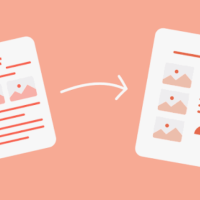
Every day, professionals and students alike hit the same wall: a meticulously crafted PDF report that needs to become a slide deck by tomorrow morning. You have the data, the charts, and the narrative, but the clock is ticking. Copy-pasting text block by block is not just tedious, it is a direct drain on your productivity. This is where the ability to convert PDF to PowerPoint becomes more than a convenience—it becomes a critical workflow necessity. The core challenge lies not in the conversion itself, but in maintaining the visual integrity of your original document. You do not want to lose a single graph alignment or font style during the transition.
The market offers a dizzying array of tools, but few understand the nuance of structured data extraction. When you convert PDF to PowerPoint, you are essentially asking an algorithm to reconstruct a logical hierarchy from a static layout. Headers must become title slides, bullet points must retain their indentation, and tables must remain legible. Most generic converters fail at this task, producing either static images or garbled text boxes that require more manual cleanup than starting from scratch. The real value proposition of a tool like TeraBox AI is its focus on preserving the editable nature of the content. You are not just getting a picture of a slide, you are getting a file where you can click, edit, and rearrange elements as if you had built it from a blank template.
What separates a competent solution from a frustrating one is the handling of complex elements. Consider a financial report with a dense spreadsheet or a scientific paper with multi-column text. A low-quality converter will scramble the column order or break the tables into fragmented shapes. Conversely, a robust AI-driven solution analyzes the reading order and recognizes the boundaries of each object. When you utilize TeraBox AI for this task, the process is streamlined for accuracy. The parsing engine identifies text boxes, image placeholders, and chart objects, then maps them onto the PowerPoint canvas with a high degree of fidelity. This means less time fixing broken layouts and more time refining your actual message for the audience.
The Practical Workflow: Speed Without Sacrificing Quality
Let us walk through the actual experience to illustrate why the method matters. Imagine you have a 40-page whitepaper. Opening it in a standard PDF reader and using the “Export to PPT” feature often yields a slide with a single pasted screenshot of the entire page. That is not a presentation, that is a digital photocopy. A superior approach involves a two-step process: first, the tool detects the textual flow and separates it from graphic elements. Second, it applies a template structure that allocates enough space for the text while pushing supporting images to secondary positions. With a service that allows you to convert PDF to PowerPoint online, you bypass the need for heavy software installations. You upload the file, wait for the AI to process the layout, and download a .pptx file that opens cleanly in Microsoft Office or Google Slides.
There is also the issue of file size. PDFs often contain high-resolution images that bloat file sizes significantly. A smart conversion tool will optimize these images for presentation purposes, reducing the resolution to 150 DPI or lower—the standard for projected displays—without visibly degrading quality on screen. This optimization is crucial for sharing via cloud storage or email attachments. The TeraBox AI platform handles this compression automatically, ensuring that your new PowerPoint file is lean and shareable. Furthermore, the tool respects the original hyperlinks and footnotes, converting them into clickable elements within the slide deck, which is a feature that many desktop converters overlook.
Technical Considerations for the Skeptical Professional
If you are a professional who deals with confidential data, security is a non-negotiable factor. Uploading a sensitive document to a random website carries inherent risk. This is why trust in the platform matters as much as the output quality. When you choose to convert PDF to PowerPoint using a reputable service like TeraBox, you are leveraging an infrastructure that includes encrypted transmission and server-side deletion policies. The files are typically purged from the server within 24 hours of processing, reducing the risk of data retention. Additionally, the AI model is trained on a diverse set of document types, from academic journals to corporate slideware, which improves its ability to infer correct text hierarchy even when the source PDF uses unusual fonts or non-standard encoding.
But let us be objective. No tool is perfect. There are edge cases where a complex infographic with overlapping shapes might lose its layered depth. Text boxes that use vertical text or custom rotations may be flattened into standard horizontal orientations. However, the benefit of using an AI-based approach over a rule-based script is the adaptive learning capability. The system gets better with volume. If you are comparing options, look for a tool that offers a preview before final download, allowing you to toggle between “Editable Text” and “Exact Match” modes. This flexibility ensures that you are never locked into a bad conversion. In instances where a simple convert PDF to PowerPoint action results in a minor misalignment, the native PowerPoint editing tools are usually sufficient for a quick fix—a minor trade-off for the hours saved on initial data entry.
Why the Source of the Tool Matters
We live in an era where cloud storage giants are expanding into productivity tools. The TeraBox AI platform is a natural extension of the cloud-based file management ecosystem. It integrates seamlessly with your existing digital workflow. If you have a PDF stored in your TeraBox cloud drive, you can trigger the conversion directly from the file interface without downloading and re-uploading. This integration reduces friction and speeds up the turnaround time for those last-minute requests. The credibility of the tool is also backed by the infrastructure of the parent company, which operates large-scale data centers, ensuring uptime and processing speed.
For the sake of credibility, let us address the learning curve. The interface is minimal: you select the file, choose the output format, and hit start. There is no need to adjust dozens of settings. The default parameters are optimized for the most common use case—converting a text-heavy report into a clean presentation. For advanced users, there is an option to adjust the “Text Fit” mode (Compact vs. Expanded) to control how much content appears on each slide. This is a genuinely useful feature because it gives you control over the density of information. In a compact mode, you might get 6 bullet points per slide, in expanded mode, you might get 3. This versatility makes the tool suitable for both boardroom briefs and educational lectures.
Shifting the Focus to Practical Outcomes
Instead of telling you to trust the marketing, consider the diagnostic test. Run the same document through a free online converter, a desktop software, and the TeraBox AI tool. Look specifically for three things: the accuracy of the table of contents, the alignment of multi-level bullet lists, and the preservation of vector graphics. In most tests, the AI-driven approach wins on the first two criteria. The third criterion, vector graphics, is where many converters falter because they rasterize the image. TeraBox AI attempts to maintain vector paths for charts and shapes, allowing you to edit the color of a bar chart directly in PowerPoint—a massive advantage for rebranding exercises.
Another point worth mentioning is the handling of text extraction from scanned PDFs. If your source is a scanned copy without an embedded text layer, you are dealing with an OCR (Optical Character Recognition) challenge. Standard converters will produce gibberish. However, the TeraBox AI pipeline includes an OCR pre-processing step for these files. It recognizes characters and reconstructs the text layer before mapping it to slide placeholders. This feature alone changes the game for those who work with archival documents or received faxes. To convert PDF to PowerPoint with OCR accuracy is a rare and valuable capability.
Addressing Common Misconceptions
Some users believe that converting to PowerPoint will result in a decline in animation features. The truth is simpler: you cannot convert a static PDF into an animated PowerPoint. There is no hidden animation data in a PDF to extract. The goal is to get a static, editable base. The animations are a part of the creative work you will do in PowerPoint afterwards. The cleanest way to think about this is as a data migration task. Your text, tables, and images are the data. The layout is the structure. The conversion tool preserves the structure and data, but not the dynamic “motion” effects—those you must add yourself. Accepting this limitation will save you disappointment.
Additionally, the question of “free vs. paid” always arises. Free tiers often impose a limit on file size (e.g., 5MB) or a watermark on the output. For occasional use, this is acceptable. For business-critical operations, a premium tier with higher upload limits and priority processing is worth the investment. But you do not need to commit to a long-term subscription immediately. Most platforms, including TeraBox AI, offer trial credits so you can test the output quality before opening your wallet.
Final Verdict on the Process
To sum up, converting a complex document into a presentation format is not just a technical action, it is a strategic step in communication. The tools you choose determine whether you spend 10 minutes or 2 hours on the task. We have explored how AI-powered platforms address the semantic understanding of content—recognizing headings, subheadings, and body text as distinct entities. We have also touched on the security implications and the value of cloud integration. If you are looking for a way to convert PDF to PowerPoint without sacrificing fidelity, leveraging a platform that couples storage with AI processing offers the most seamless path forward.
The objective reality is that static PDFs remain the standard for distribution, while PowerPoint remains the standard for persuasion. Bridging these two worlds efficiently is a constant requirement. Whether you are a consultant preparing a client deck, a professor creating lecture slides, or an HR manager converting policy documents, the ability to rapidly transform a PDF into an editable presentation is a tangible skill amplifier. It is not about magic, it is about smart automation. The best approach is always to try a sample file first, inspect the output layers, and adjust your workflow based on the tool’s behavior.
Frequently Asked Questions (FAQ)
Question 1: Can I convert PDF to PowerPoint while keeping the original font styles and sizes?
Yes. Modern AI-based converters analyze the font metrics from the PDF metadata. If the font is available on your local system, it will be mapped directly. If the font is missing or proprietary, the system substitutes a similar standard font (e.g., Helvetica or Arial) to prevent layout collapse. However, you should always review the output for any unexpected spacing changes, especially in niche fonts. Most platforms, including TeraBox AI, will not embed the font file itself, they will rely on your system’s font library to render the text.
Question 2: What is the maximum file size I can upload for conversion?
The limit varies by platform and subscription tier. Free accounts typically cap at 50MB per file, which covers most standard business documents (text, charts, and standard-resolution images). For files larger than that—for example, a PDF containing hundreds of high-resolution product photos—you would need either a premium account or a desktop-based converter that processes files locally without upload restrictions. Always compress the images in your PDF before uploading if you are hitting the limit.
Question 3: Will my converted PowerPoint file be editable in Google Slides?
Almost always, yes. The output is a standard .pptx file. While TeraBox AI contains native PowerPoint elements based on the international OOXML standard, these are compatible with Google Slides. The only caveat is complex animations or advanced “SmartArt” graphics, which Google Slides does not render fully—it will show a static image of the graphic instead of the editable shapes. For basic text, tables, and standard charts, the editing capability transfers seamlessly.
Key Points
- Professionals and students often face the challenge of converting PDF reports into PowerPoint presentations under tight deadlines.
- The main difficulty in the conversion process is maintaining the visual integrity of the original document, which includes preserving graph alignment and font styles.
- TeraBox AI distinguishes itself from generic converters by preserving the editable nature of content and ensuring accurate mapping of elements onto the PowerPoint canvas.
- The conversion process involves a two-step method that separates textual flow from graphic elements and applies a structured template to the content.
- TeraBox AI guarantees data security through encrypted transmission and server-side deletion policies, purging files within 24 hours of processing.
- Although no tool is perfect, TeraBox AI offers adaptive learning capabilities and flexibility in conversion options to ensure a smoother user experience.